Shortcoder – FAQ

08/08/2010 | 946 views

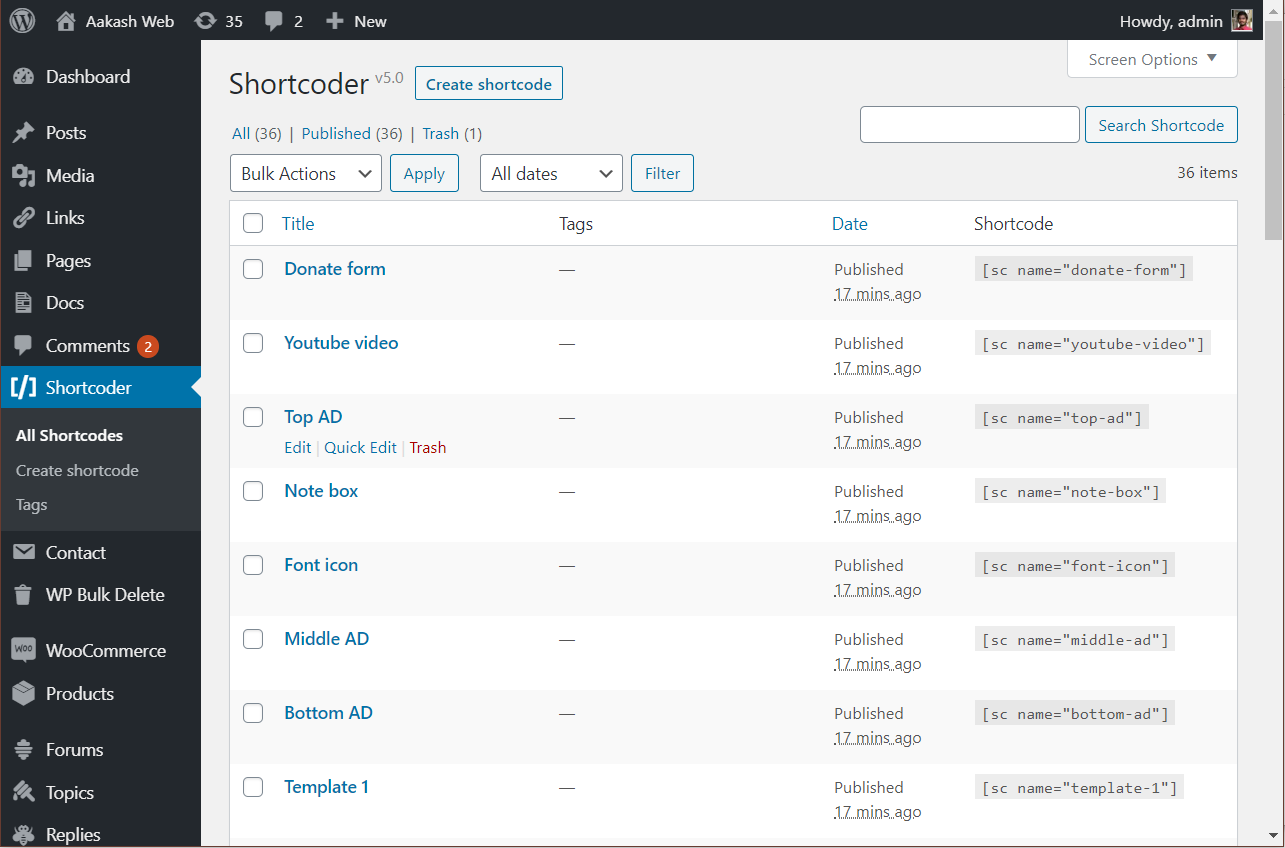
List of all Frequently asked questions for shortcoder.

Basic Syntax for using in post

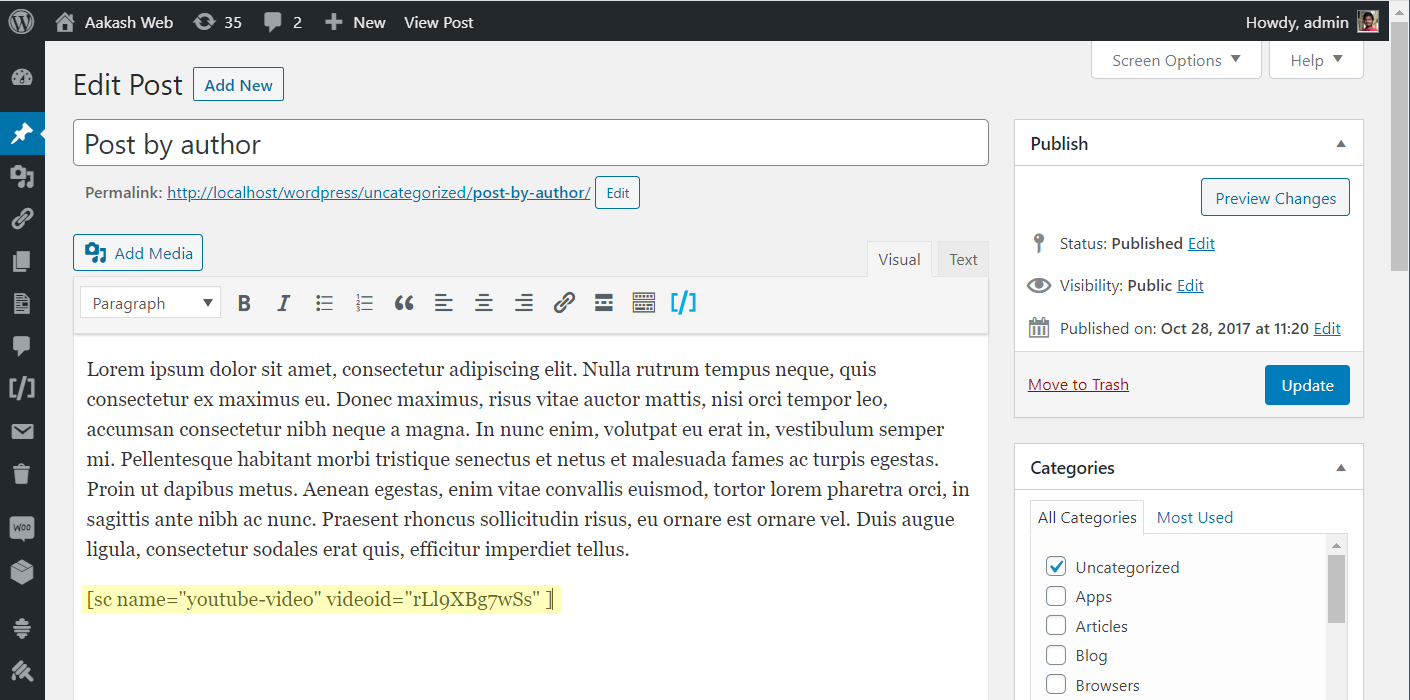
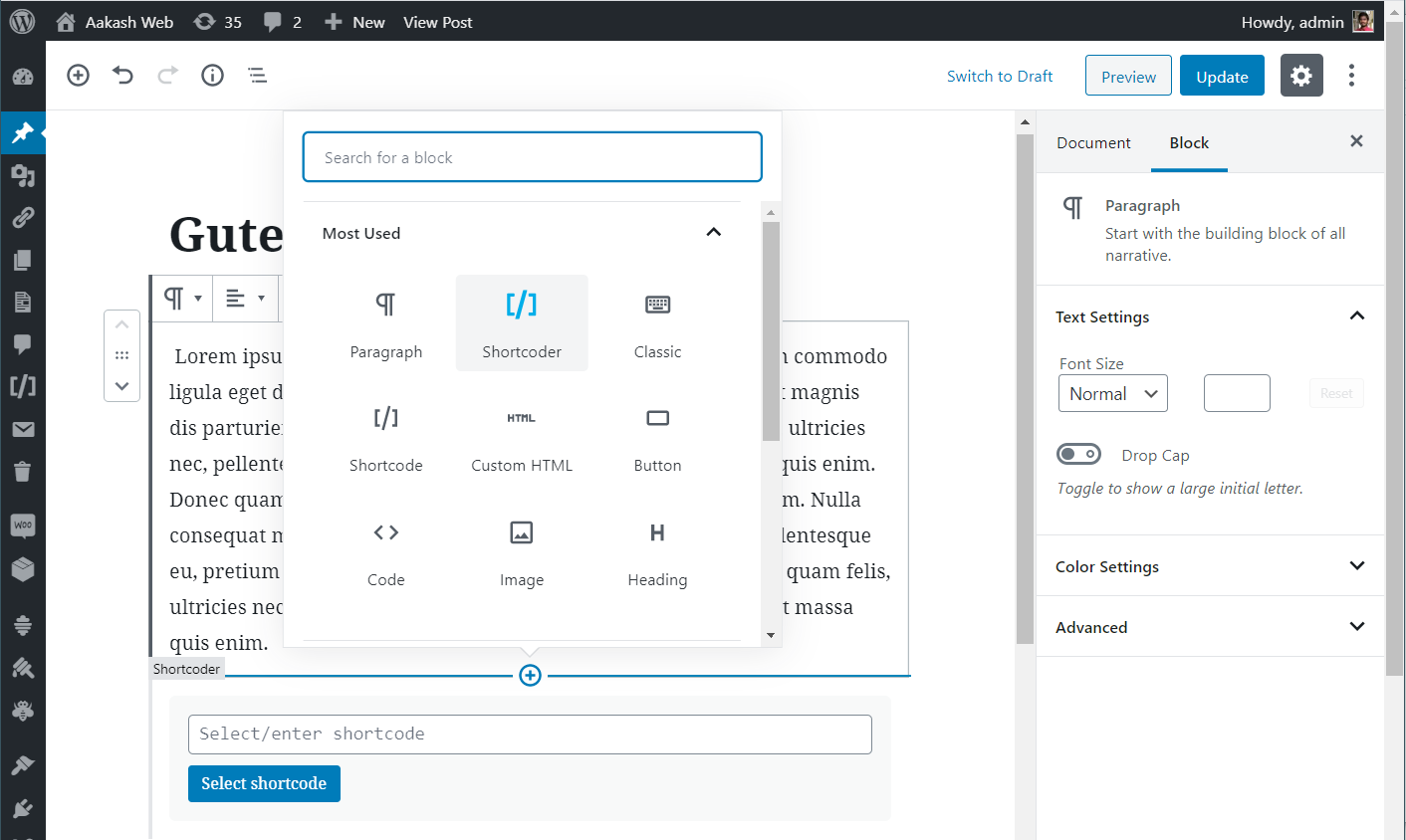
The basic syntax for using the created shortcode in your post is

[sc name="shortcodeName" attribute1="value" attribute2="value" ]

How to use Shortcoder ?

Basic steps :

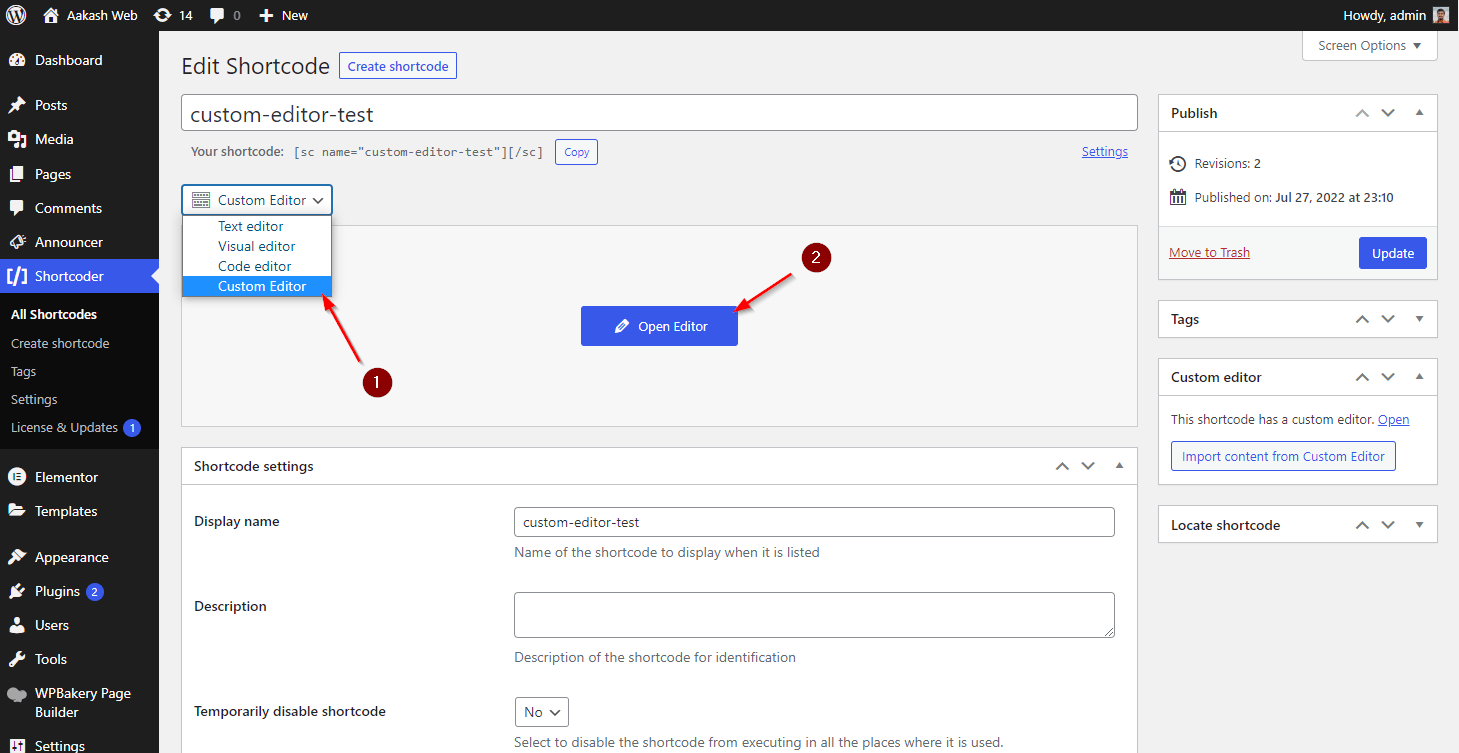
  1. After uploading the plugin to your wp-content/plugins/ directory, activatethe plugin through the plugins menu.
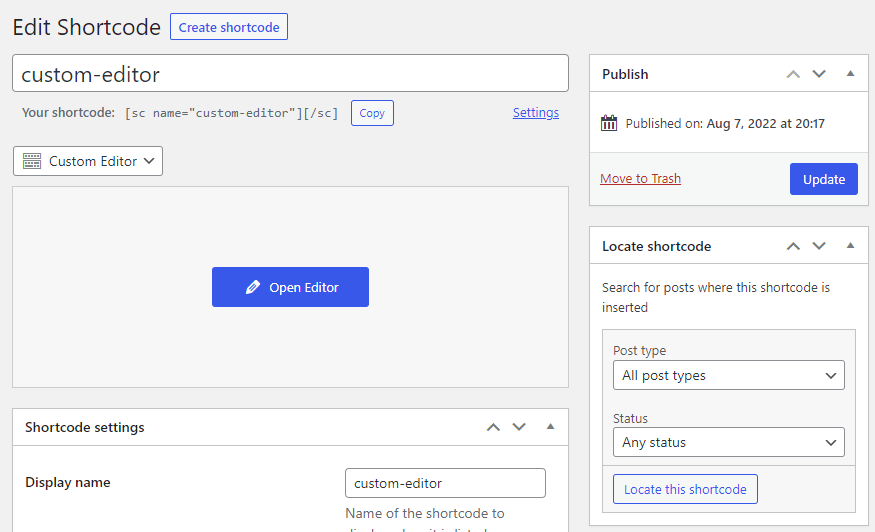
  2. Then goto settings -> Shortcoder to get into shortcoder admin page.

Creating a shortcode :

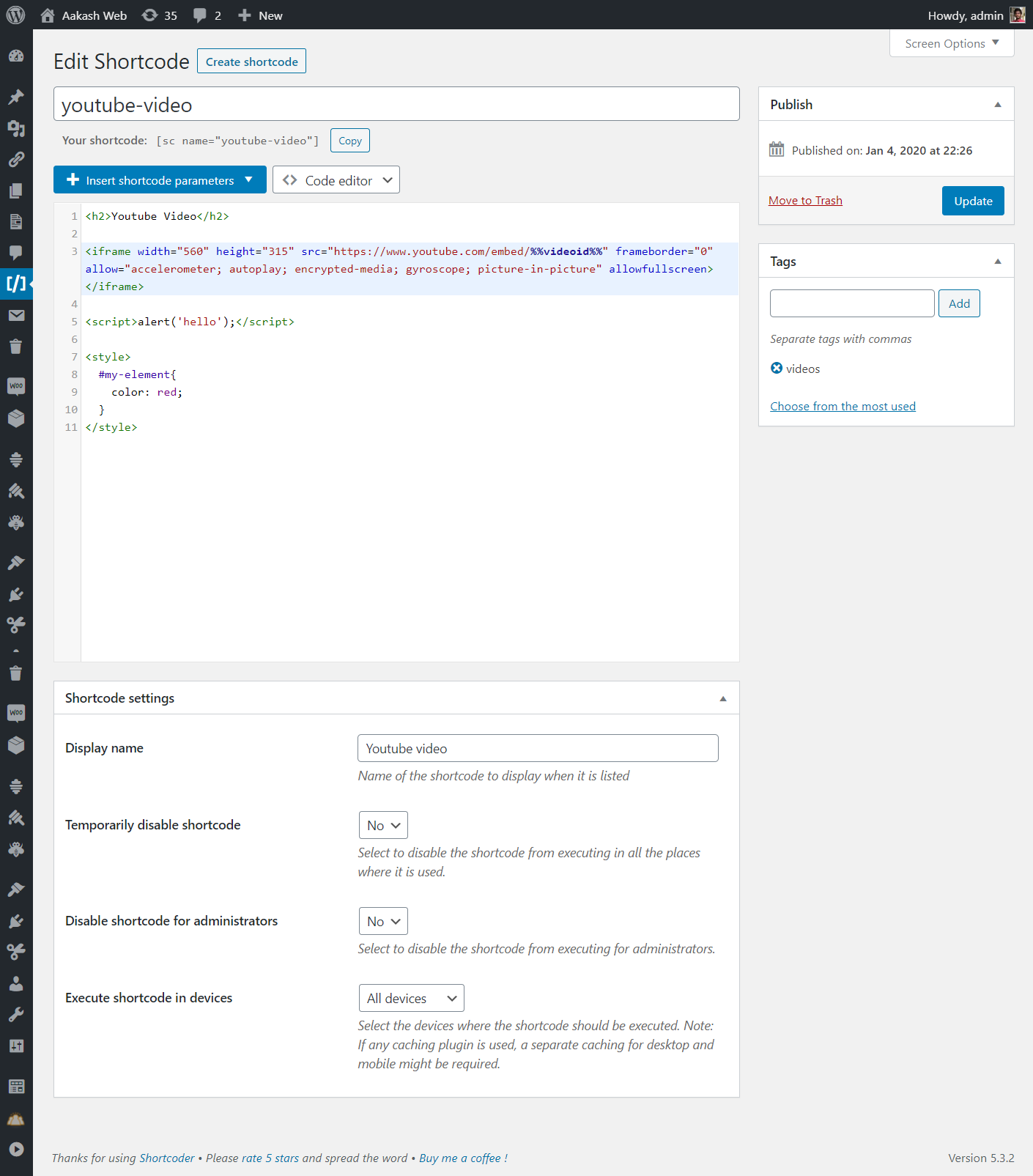
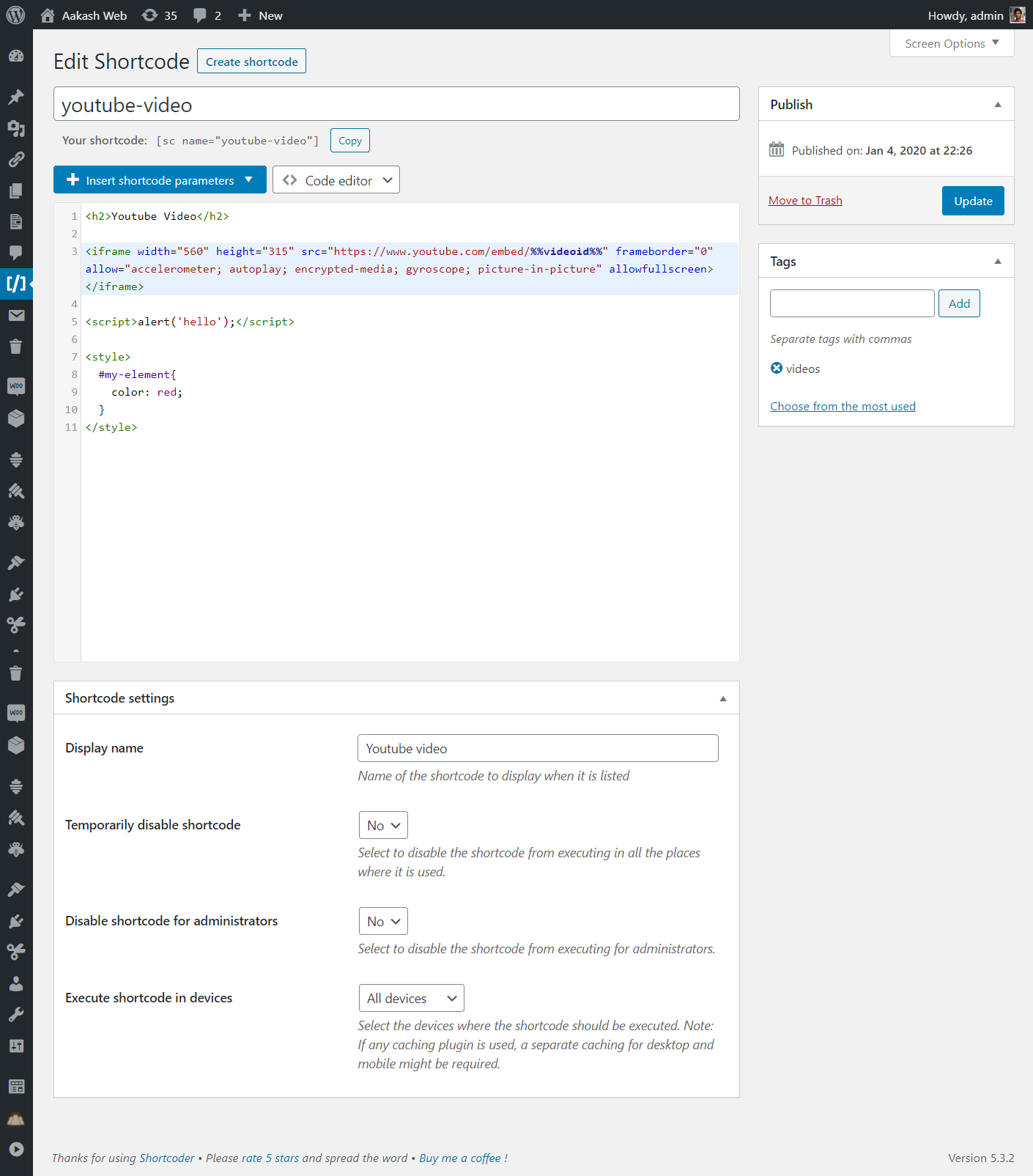
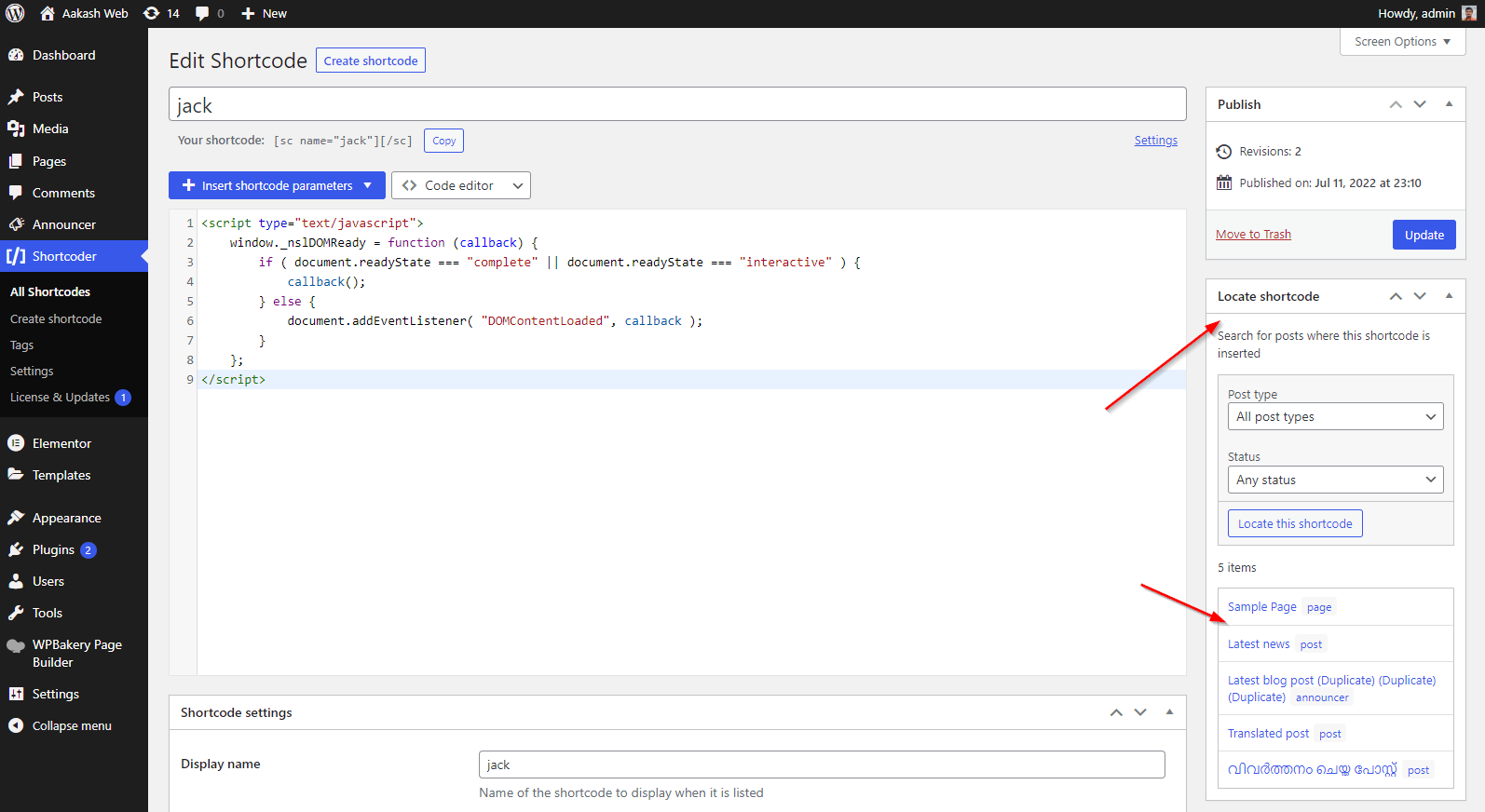
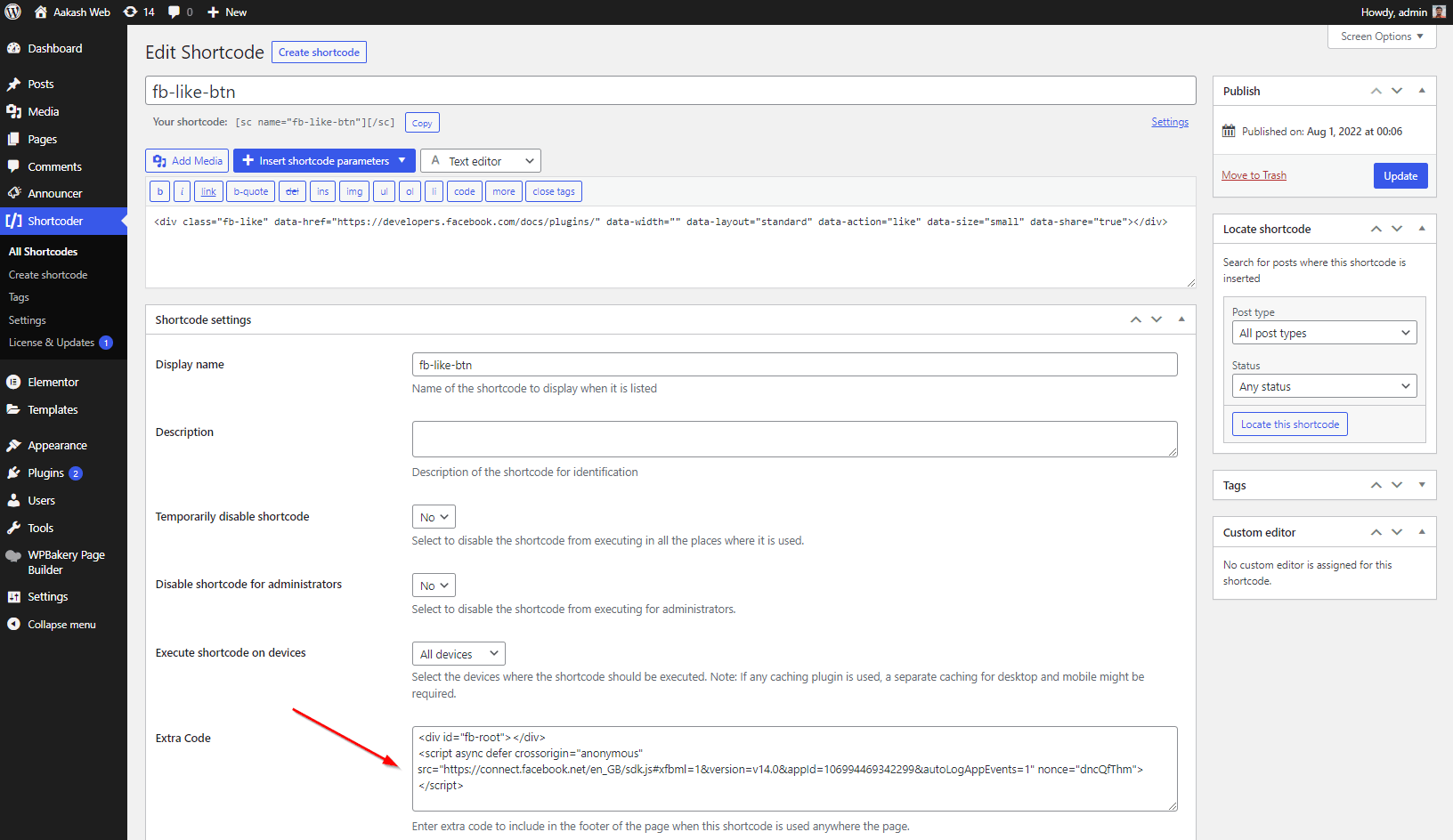
  1. You can create your shortcode using the “Shortcode Name” combo box.
  2. When you are using the plugin for the first time, you will see the “Shortcode Name” combo box empty.
  3. Just select a list from the combo box (although it is empty) .
  4. You will see the page reloading.
  5. After reloading, enter a name for your the shortcode attribute. Eg: If you enter the name as “adsenseAd1″ then you will use the shortcode in your post.
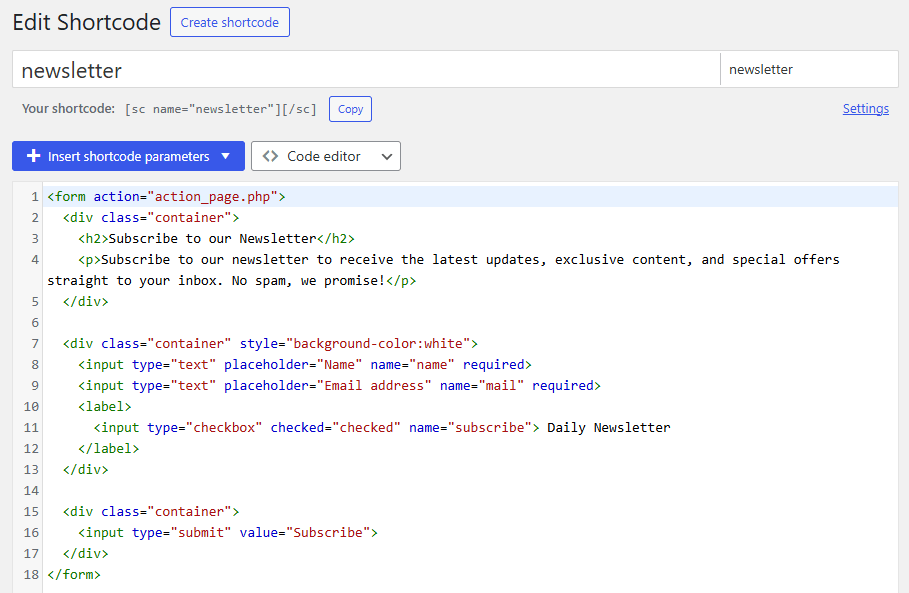
  6. Then, enter the content for the shortcode. Eg : In the above case enter the adsense javascript ad code.
  7. Click “Update” button in the bottom.
  8. That’s all. A shortcode/ shoortcode attribute will be created.
  9. Then you can use in your post. When you use it, the adsense advertisement appears there.

Optional Settings

You can also add additional settings to your shortcode. The settings are explained below

  1. “Temporarily Disable this shortcode attribute” – This option allows to disable this shortcoder i.e the shortcode will not be executed. This will be useful if you want temporarily disable showing any ads, link etc.
  2. “Do not execute this shortcode” – This option allows to stop execute the shortcode in the “Front page”, “Post Page”, “Category Page”, “Archive page or Tag page”, “Search results page”.

What are the “Inbuilt shortcodes” ?

Please see this page for detailed information about the list of inbuilt shortcodes and their usage with example and working .


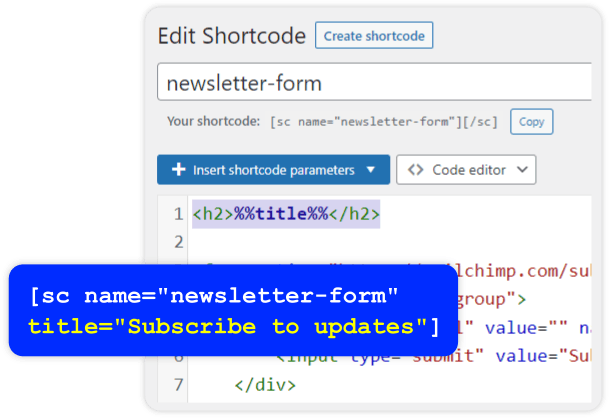
What are attributes ?

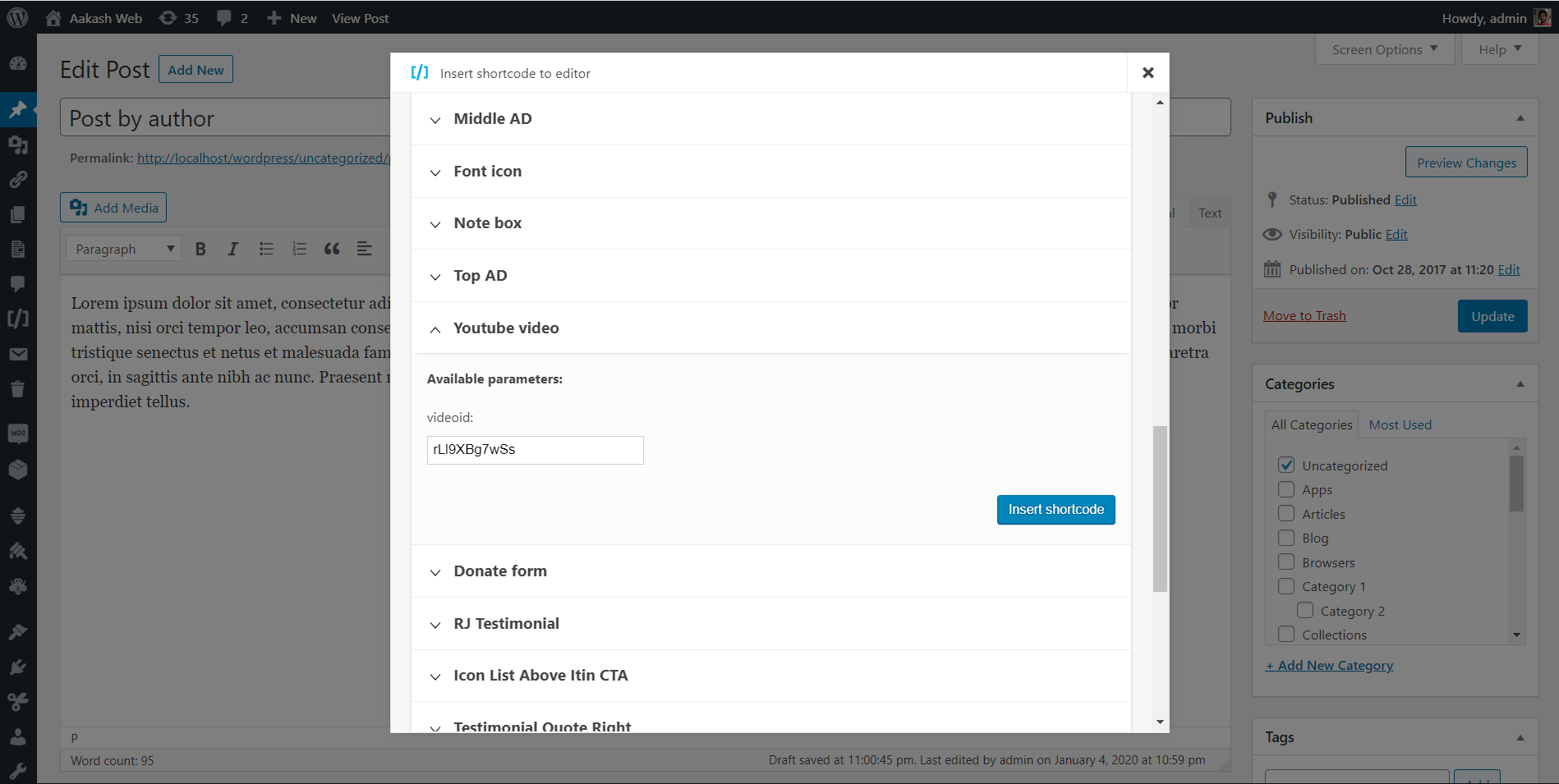
Attributes are parameters through which allows to pass any content.

For example : The shortcoder “myMood“s content is “My mood is %misc1% “. Here %misc1% is the attribute.
Now you should use the attribute misc1 with your shortcoder syntax.

In post :
[sc name=”myMood” misc1=”Happy”]
Output :
My mood is Happy

More Informations : Example | Working | Documentation


Other FAQ’s

Q : Should I need to enclose any content within the shortcode ?

A : There is no need to enclose any content within the shortcode. Although you enclose there will be no effect on the output. But for certain Inbuilt shortcodes, you should enclose some content with the shortcode.

Q : Where should I use the shortcode syntax, in Visual editor or HTML editor ?

A : You can use it in any editor as you wish. Testings were done in both the editors. If you come across any error please report.

Q : I need to save more shortcodes i.e greater than 10. What to do ?

A : Since this is the initial version, 20 shortcode storing feature is introduced for respose. You can increase this limit manually. You must follow the below steps.

  1. Take a backup of the Shortcoder.php file in the shortcoder folder.
  2. Open it with a text editor.
  3. Goto line 297.
  4. You will see the line <?php for($listid=1;$listid < 21;$listid++){
  5. Here the bolded number indicates the number of shortcodes to be stored. Change it to any desired number . Eg: If you want 30 shortcodes, then enter 31.
  6. Save and enter the admin page and see the result.

This is not yet tested but sure that it will work. This too will be corrected in the future versions and don’t need to worry.

Q : I used the shortcoder’s shortcode in many my posts. After disabling the plugin, will the shortcode syntax will be seen in all of my posts ?

A : Yes. The shortcode syntax will be displayed in the post after disabling the plugin. But in the future version, this will be avoided so don’t need to worry. You can instead use the "Temporarily Disable this shortcode attribute" setting to disable the shortcode.

Q : Can I use spaces in the shortcoder name attribute ?

A : Yes, it is possible.

Q : What will happen if I use the same attribute twice or more ?

A : The attribute which is entered last only will be taken under consideration. If the syntax as name="value1" name="value2" then value2 only will be considered. This applies for any attribute.

Q : Is is compulsary to use " " (Quotes) for the name attribute and other attributes ?

A : You should enclose the content with quotes, if the attribute value contains spaces. If it has no spaces, then quotes are optional. You can use like below.

[sc name=example ] or [sc name="example" ]

Q : Is it compulsary to use the "name" attribute in the shortcode ?

A : It is the required attribute of the syntax. If it is not used, there will be no output.


Admin Interface

Q : How to show/Hide the preview box and other similar like that ?

A : It is very simple, just click the double headed arrow near the heading of the box. This show/hiding is completely cookie oriented. So this will be saved. Inorder to show it again, click it again. This is enabled only for selected boxes and in sidebar.

Q : Can i add some more "Attributes button" to the "AW Quick Tag" toolbar ?

A : Yes, you can. But you need to do some editing in the Shortcoder/aw-quick-tags/toolbar.php. You need to add the line

<input type="button" onclick="awQuickTags('sc_content','%atributeName%','','replace');" value="%atributeName%" />

Just replace the bolded text and paste it in the toolbar.php file within the div tag which contains the id "awQTToolbar1".

You cannot use your own attribues. There are some specific. Click here to see more.

For any troubleshootings or any feature requests please post it in Aakash Web Forum .


Donate & Support with Paypal

If you find my products useful, then just donate and support my work. It will be an encouragement !


Related Posts

    None Found
  • http://www.aakashweb.com/wordpress-plugins/html-javascript-adder/ HTML Javascript Adder – Wordpress Plugin – Aakash Web – Aakash Web

    [...] Shortcoder – FAQ [...]

  • http://www.aakashweb.com/wordpress-plugins/shortcoder/ Shortcoder – Wordpress Plugin – Aakash Web

    [...] Shortcoder – FAQ [...]

blog comments powered by Disqus